What is Get My Code?
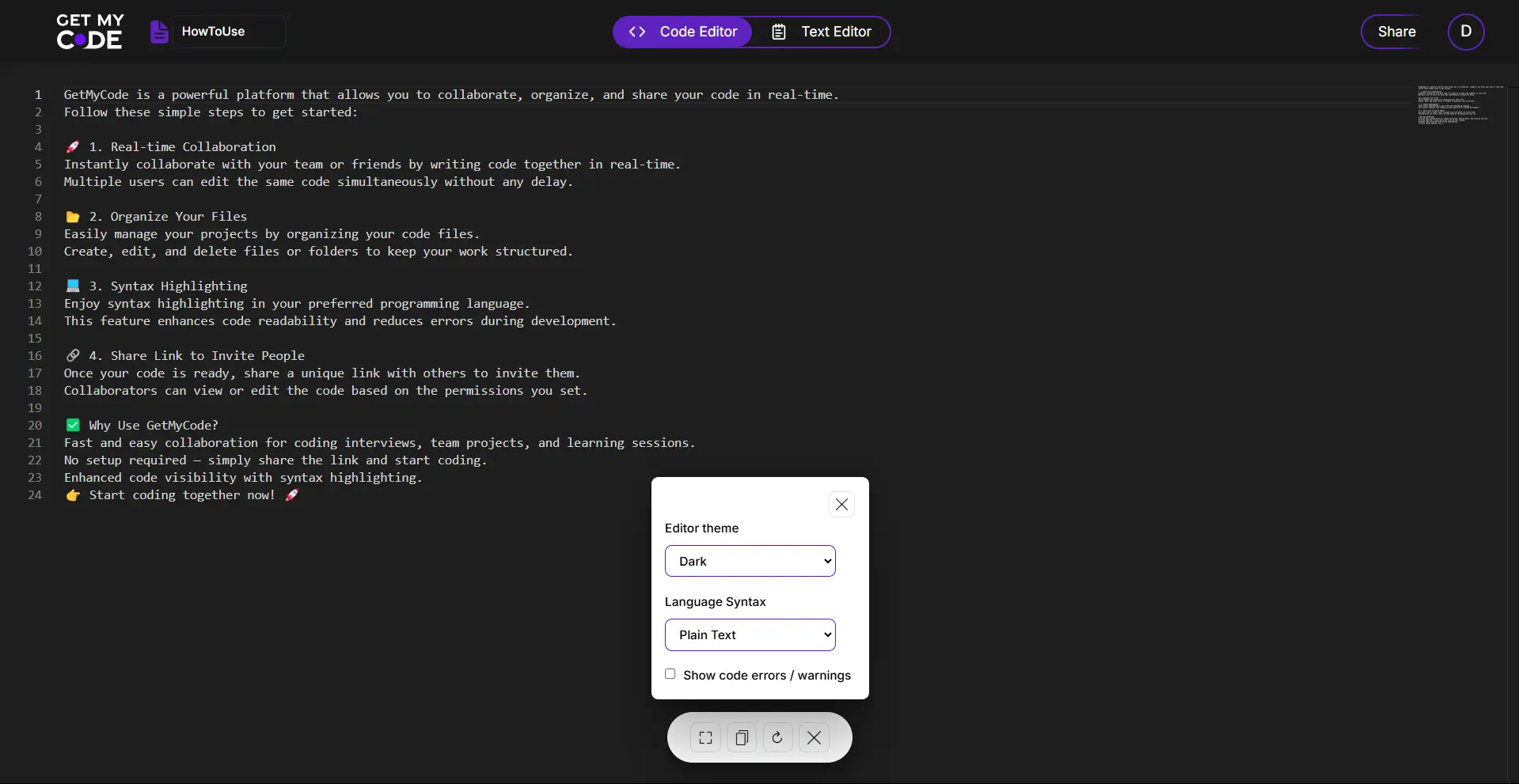
Get My Code is a browser-based tool for sharing code and text with other people in real time. You open a workspace, paste or type your content, and send the link. Everyone who opens that link sees the same content and can edit it at the same time, with every keystroke synchronised across all participants within a fraction of a second. It replaces the usual back-and-forth of screenshots, chat messages, and email attachments with a single shared page.
The service was built by the team at AjeevanTech after repeatedly running into the same problem during remote interviews and support calls: there was no quick, free way to look at a piece of code together without first asking the other person to install something or create an account. Get My Code removes that friction. There is nothing to download, no sign-up wall, and no limit on how many people can join a workspace.
Each workspace offers two editing modes. The code editorprovides syntax highlighting, line numbers, bracket matching, and auto-indentation for more than 120 programming languages. The text editor is a rich-text environment for notes, documentation, and formatted content with headings, lists, links, and code blocks. You can switch between the two at any time from the header of the workspace.
Who uses Get My Code?
Technical interviews
Interviewers can open a workspace, send the link to a candidate, and watch the solution take shape line by line. There is no software to install and no account to create, so the first five minutes of the interview are spent on the problem instead of on setup.
Pair programming and code reviews
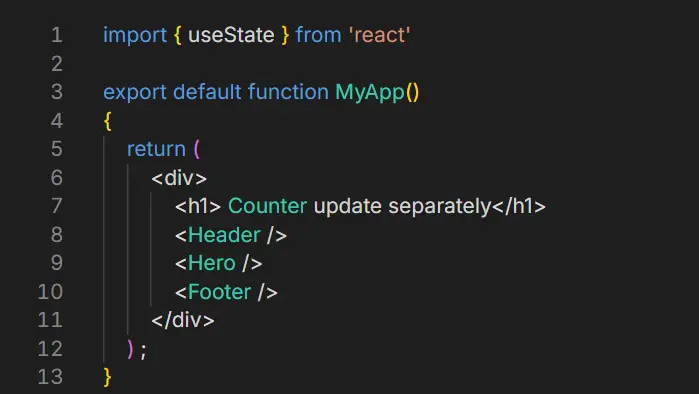
Two or more developers can edit the same file at once and talk through a bug or a design decision while the code updates in front of everyone. Because the editor supports syntax highlighting for more than 120 languages, the same workspace works for a Python script, a SQL query, or a React component.
Teaching and classrooms
Instructors can type an example once and have every student see it instantly, then invite students to edit the same workspace during exercises. Routes can be made private with a password so that only the people in the session can view or change the content.
Quick notes and text hand-offs
Get My Code is not only for source code. The built-in rich-text editor is useful for moving meeting notes, configuration snippets, log output, or any plain text between devices without emailing it to yourself.
How it works
- 01
Create a workspace
Click Share your content now on this page and a new workspace with a random route name is created for you instantly. If you prefer a memorable address, type any name directly into the browser, for example getmycode.in/team-standup, and that route becomes your workspace.
- 02
Add your code or text
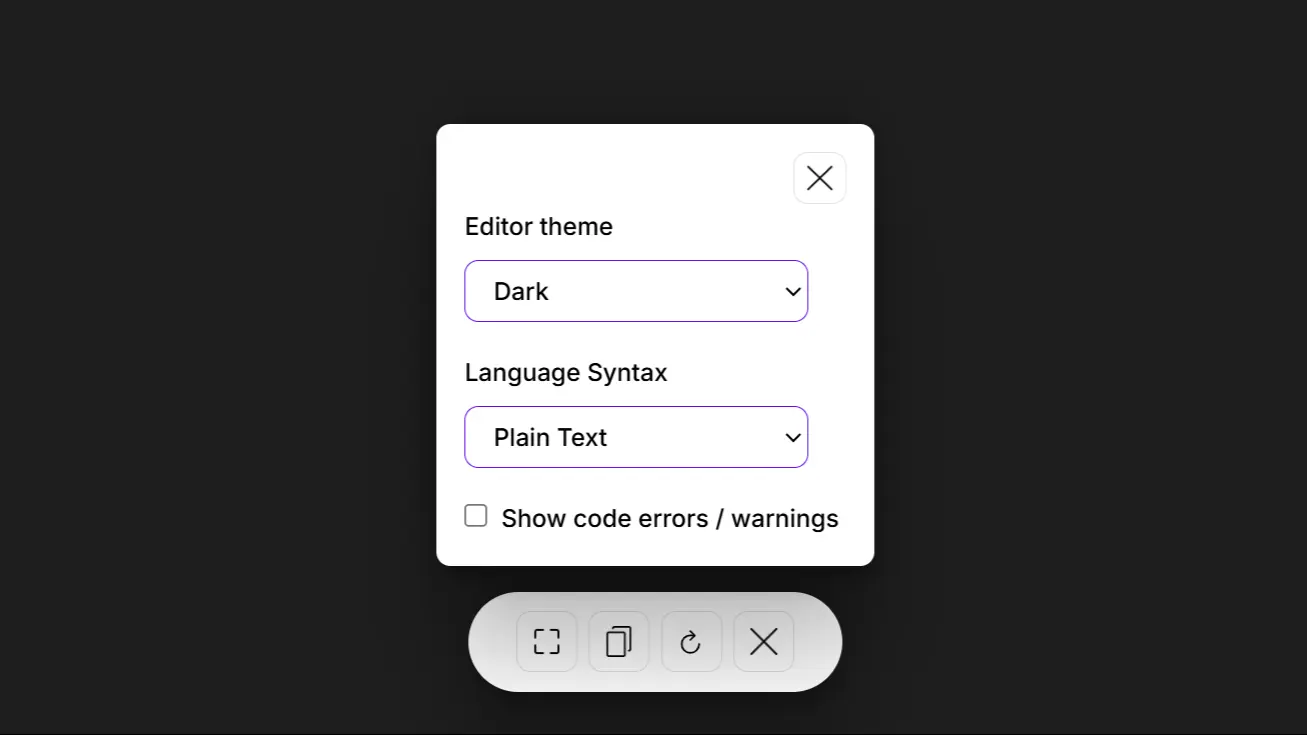
Paste existing code or start typing. Choose the language from the dropdown to get the correct syntax highlighting, or switch to the text editor for formatted notes. Your changes are saved automatically as you type.
- 03
Share the link
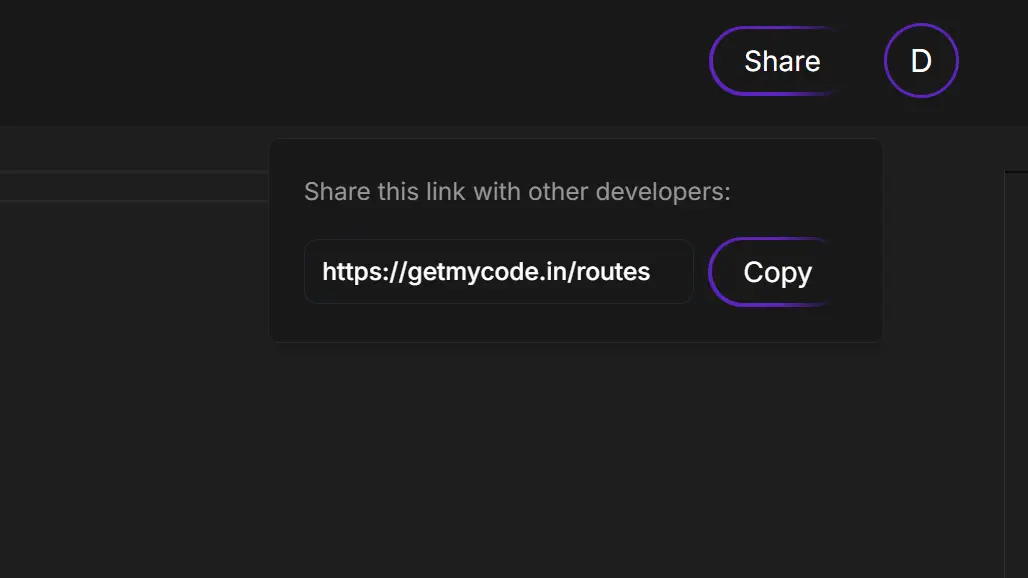
Copy the URL from the address bar or use the share button and send it to anyone. The moment they open it, they will see your content and can start editing alongside you. Optionally, sign in to claim the route, make it private, and protect it with a password.
Frequently asked questions
Is Get My Code free to use?+
Yes. The Starter plan is free and includes multi-device sync, unlimited custom routes, the full code and rich-text editors, and priority support. Creating a workspace and collaborating in real time does not require an account. See the Subscription page for the complete list of what is included.
Do my collaborators need to sign up?+
No. Anyone who has the workspace link can open it in a browser and start editing immediately. If the route owner has set a password, visitors will be asked for it before the content is shown.
What is a route?+
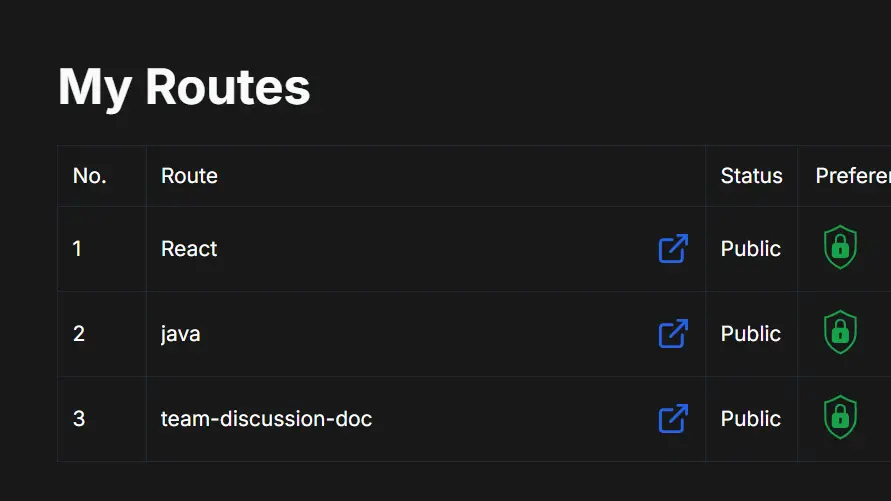
A route is simply the unique part of the URL after getmycode.in/, such as getmycode.in/my-project. Each route is its own workspace with its own content. Logged-in users can see a list of the routes they own, mark them public or private, and set a password on private routes.
How long is my content stored?+
Content on the Starter plan expires 30 days after it was last updated and is then removed from our servers. Full details are in our Disclaimer and Privacy Policy. Please do not rely on Get My Code as a long-term backup for important data; copy anything you need to keep into your own storage.
Which programming languages are supported?+
The code editor is powered by the same editor engine used in Visual Studio Code and provides syntax highlighting for more than 120 languages, including JavaScript, TypeScript, Python, Java, C, C++, C#, Go, Rust, PHP, Ruby, SQL, HTML, CSS, JSON, YAML, and Markdown.
Is my content private?+
By default a route is reachable by anyone who knows the exact URL. If you want to restrict access, log in, open the route, and switch it to private with a password. Please avoid pasting secrets such as API keys or passwords into any shared workspace.
Want a step-by-step walkthrough? Read the How to Use guide, browse our engineering blog, test your speed in the typing test, or contact us with any questions.